
Getting Started with Parse & Elements API
This tutorial will walk you through how to use Ragie’s Parse and Elements API to extract structured information from documents.
By the end of this guide, you will:
- Understand the difference between parse and index
- Upload a document to only extract its elements
- Retrieve and explore extracted document elements
- Learn practical use cases for structured document data
What We’ll Use
For this tutorial, we'll be using the Attention is All You Need paper. But you can use any PDF with clear structure, such as:
- A research paper (e.g., sections, figures, tables)
- A business report
- A sample invoice or menu
These types of documents make it easy to see how Ragie extracts:
- Section headers
- Tables
- Text blocks
- Images and captions
Ragie Processing Pipeline (Quick Overview)
When you upload a document to Ragie, it typically goes through the following steps:
Upload → Extract → Chunk → Index
Workflows
Ragie provides two workflow options:
parse
parse- Stops after element extraction
- Returns structured document elements
- Faster (no chunking or embeddings)
index
index- Runs the full pipeline
- Includes chunking and embeddings
- Enables search and retrieval
Why Use Parse?
The parse workflow is ideal when you:
- Only need structured data (tables, forms, key-value pairs, signatures, etc.)
- Want faster processing: skips chunking, embeddings, and indexing
- Plan to build your own pipeline on top of the extracted elements
- Need traceability back to the source document via bounding boxes
- Want no lock-in: store, transform, or route output into any system
Parse stops after extraction. Use
indexif you need Ragie to handle retrieval too, or combine both.
Step 1: Upload a Document with Parse
I'm going to use the Web UI. However, if your document is more than 10 MB, use the API.
- Go to: https://secure.ragie.ai/documents
- Click "Upload" in the top right
- Drag and drop your document
- Type in: "tutorial" for the partition
- Select "Hi-res" for Ingest Mode towards the bottom
- Select "parse" for Workflow
What Happens Here?
- The document is uploaded
- Ragie extracts structured elements
- Processing stops before chunking and indexing
Step 2: Get Document Elements
Get the document id
- Go to the documents in the left sidenav
- Select the attention_is_all_you_need.pdf document
- Copy the document_id from the metadata
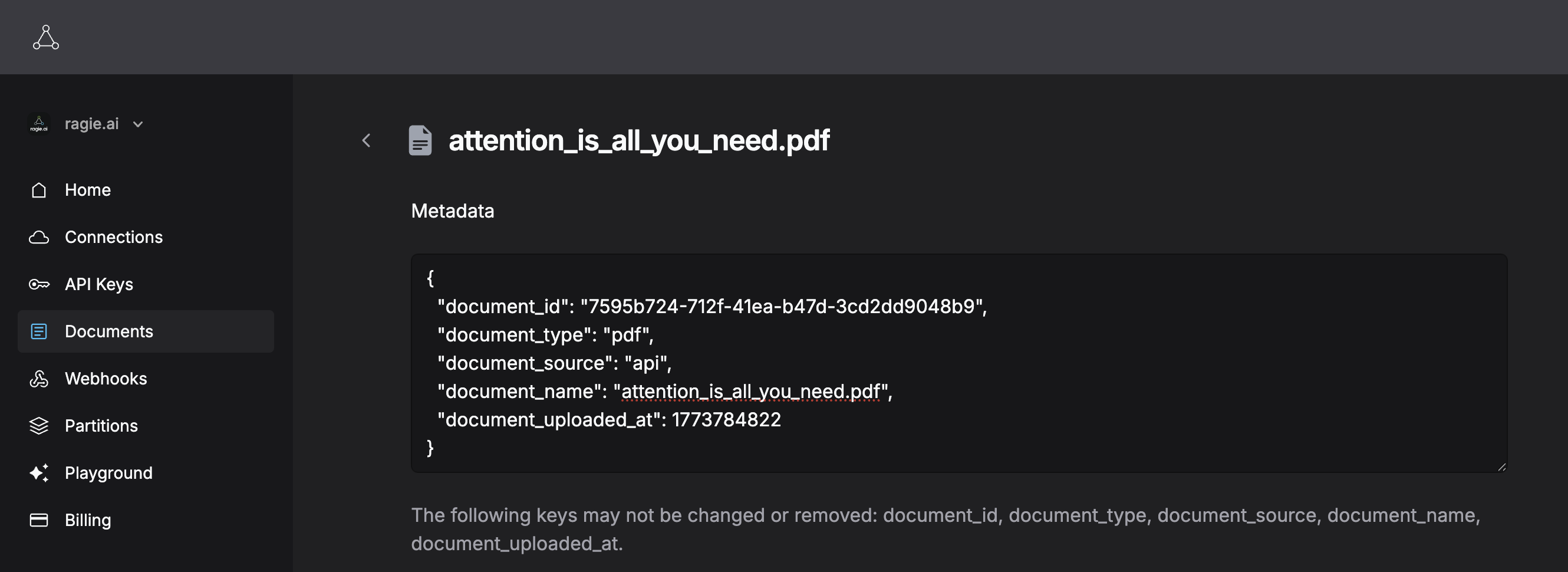
List the document elements using the elements API:
Go to this page to try listing the elements https://docs.ragie.ai/reference/list_elements
Make sure to use the document_id from above and the "tutorial" partition.
The first element I see is a Title element with content "Attention Is All You Need"
{
      "id": "c2bad18a-62ab-4050-b9e0-ab178fcae66f",
      "created_at": "2026-03-17T22:00:36.895630Z",
      "index": 0,
      "metadata": {
        "filetype": "application/pdf",
        "languages": [
          "eng"
        ]
      },
      "type": "Title",
      "text": "Attention Is All You Need",
      "markdown": null,
      "location": {
        "location_type": "bounding_box",
        "left": 0.3445,
        "top": 0.1255,
        "width": 0.3099,
        "height": 0.022,
        "page_number": 1
      },
      "data_content": {
        "type": "Title",
        "content": "Attention Is All You Need"
      }
    }
Okay, but what if I want all of the tables?
You can add a "Table" filter to the type field.
The result has a lot of , including the html of the table, a description, and markdown.
Here's the markdown result for the first element I get
| Layer Type | Complexity per Layer | Sequential Operations | Maximum Path Length |
|---|---|---|---|
| Self-Attention | O(n*-d) | o(1) | o(1) |
| Recurrent | O(n-d?) | O(n) | O(n) |
| Convolutional | O(k-n-d?) | ()(1) | O(logk(n)) |
| Self-Attention (restricted) | O(r-n-d) | 0(1) | O(n/r) |
You can filter multiple elements at the same time. See Elements for more information on each element.
Here's a partial result I filter for "Table" and "FigureCaption"
[
  {
        "id": "682f7bff-64d4-492d-b5ca-d17a94cd3272",
        "created_at": "2026-03-17T22:00:36.895630Z",
        "index": 31,
        "metadata": {
          "filetype": "application/pdf",
          "languages": [
            "eng"
          ]
        },
        "type": "Title",
        "text": "3.1 Encoder and Decoder Stacks",
        "markdown": null,
        "location": {
          "location_type": "bounding_box",
          "left": 0.1756,
          "top": 0.8601,
          "width": 0.2398,
          "height": 0.0126,
          "page_number": 2
        },
        "data_content": {
          "type": "Title",
          "content": "3.1 Encoder and Decoder Stacks"
        }
      },
      {
        "id": "430eaf0b-c6a5-4358-bc80-40d9892ae747",
        "created_at": "2026-03-17T22:00:36.895630Z",
        "index": 35,
        "metadata": {
          "filetype": "application/pdf",
          "languages": [
            "eng"
          ]
        },
        "type": "FigureCaption",
        "text": "Figure 1: The Transformer - model architecture.",
        "markdown": null,
        "location": {
          "location_type": "bounding_box",
          "left": 0.342,
          "top": 0.5107,
          "width": 0.3161,
          "height": 0.0126,
          "page_number": 3
        },
        "data_content": {
          "type": "FigureCaption",
          "content": "Figure 1: The Transformer - model architecture."
        }
      }
]
That's it!
Next Steps
- Try parsing your own documents
- Experiment with filtering and transforming elements
- Combine parse with your own chunking/indexing logic
- Upgrade to index when you need retrieval capabilities
Updated 4 months ago